
• 500+ integrators
  • 5,000+ projects completed
  • 12-year warranty on pixels
  • Designed and integrated in Canada
  • Canada · United States · Europe
  • cULus · CSA · CE · RoHS
  • Cloud or local app
  • 20 years of experience in home automation
New IllumiDEL App · Beta 2.0

The whole house. One app. It's right here.

Exterior, garage, backyard, kitchen, home theater: every IllumiDEL system can be controlled from one place—whether you’re in the living room or on the other side of the world. Via the cloud starting today, and locally over your Wi-Fi coming soon. No subscription, ever.All your IllumiDEL systems in one place, whether you’re at home or anywhere else. No subscription, ever.

Do you have the V1 app? Upgrade your controller in about 15 minutes.

Click here to migrate →
Cloud, and on-premises coming soonAvailable everywhere starting now
$0/monthNo subscription, no paid account
iOS and AndroidPhone and tablet
LongueuilDesigned here, with our integrators
Do you already have the V1 app? · Beta 2.0

Migrate in nine steps— all by yourself.

The new app requires new firmware in the controller. The update is initiated from the old app—no tools or integrator required—and your setup remains unchanged. Allow about 15 minutes, with your phone in hand, connected to your home Wi-Fi, and near the controller. Keep both apps installed during the migration.

Steps 1 through 3: New App

Create an account

  1. Install the IllumiDEL app from the App Store or Google Play. Tap “Sign up,” enter your name, email address, and a password, accept the terms and conditions, and then tap “SIGN UP.”
  2. Enter the six-digit code you received by email, then tap "VERIFY."
  3. Log in by tapping "SIGN IN," then tap "ENTER SYSTEM."
Steps 4 and 5: Old App

Update the controller

  1. Open the old app and tap the gear icon in the upper-right corner. Under "Update Available," tap "View Details, " read the warning, and then tap "Install." Do not disconnect anything during the update.
  2. Restart the controller. Once the update is complete, unplug it from the outlet for 30 seconds, plug it back in, and wait two minutes.
Steps 6 through 9: New App

Add the controller

  1. Create your project. Tap the name at the top of the screen ("Home"), then tap "Projects" and "+ Add Project." Enter a name and the address, then tap "Create."
  2. "Devices" tab, "+ Add Controller, " then "Devices already on the network": Your controller is already connected to your Wi-Fi. Do not tap "CONTINUE."
  3. Tap "ADD" next to your controller (whose name begins with illumidel-), then "Navigate to Home."
  4. Please wait 8 to 10 seconds. The controller may appear to be offline at first, but it will then switch to "Active" on its own.

New system, installed with the new app? No need to migrate anything—just follow the getting started guide.

Your LEDs:The lighting configuration (type, zones, number of LEDs) remains unchanged. No wiring needs to be altered.
Your V1 presets willbe deleted during the migration: the new library uses a different structure. You'll start with over 1,600 ready-to-use presets.
Your schedules: Check themafter the migration and recreate any that are missing—in the new app, setting a sunset schedule takes just three taps.
Important. Once migrated, the controller will no longer work with the old app: there’s no going back. Perform the migration when you have about 15 minutes to spare—not on the evening of a party. And if you run into any issues: support@illumidel.com, including your phone model and a screenshot of where it’s stuck.
Is the controller not coming back online? Perform a power reset.

Unplug the controller from the outlet, wait 30 seconds, plug it back in, and then wait two minutes. After the firmware update, this resets the clock and reestablishes the connection to the cloud. If the new app still can't find it, check the troubleshooting guide or contact us.

The IllumiDEL-AP network, after the migration
  • When the controller is connected to the home Wi-Fi network, the network IllumiDEL-AP-XXXX no longer appears in the list of Wi-Fi networks. That's normal.
  • If it loses its Wi-Fi connection (due to a new router, a password change, or an outage), the network will reappear so you can reconnect to it. See " Changing Your Router or Wi-Fi."
  • The new password for this network is illumidel1234, all lowercase.
Training videos

Watch this before you begin.

Two short videos, screen by screen: one to help you get started with the new app, and one to help you migrate your controller from the V1 app.

You have the V1 app

Switch to the new app

The nine steps, from updating the old app to adding the controller to the new one.

Click here to migrate →
Quick start Guide

Getting Started with the App

Create your account, locate your system, and configure your initial settings: colors, white balance, and schedules.

Read the user guide

All the videos are also available at the training center.

A single ecosystem

Outside. Inside. An app.

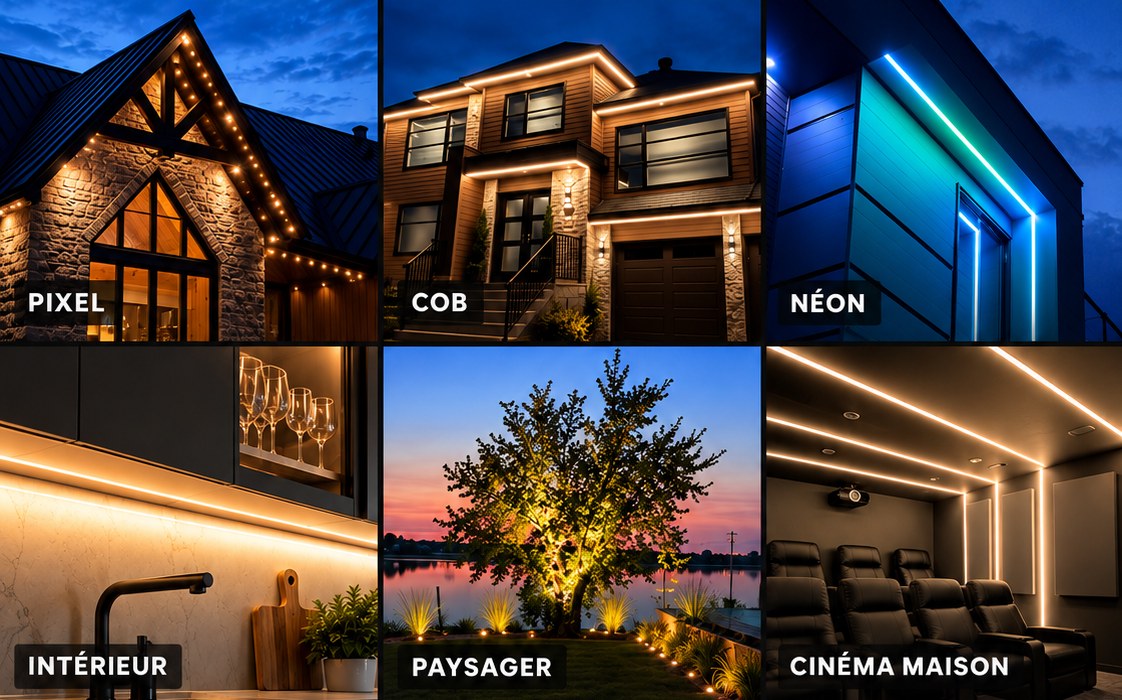
The LED lights on the roof, the COB lights under the eaves, the neon lights in the garage, the garden lights, and the white light strips in the kitchen and home theater: different products, but just one IllumiDEL controller per zone and one app for everything. No separate app for each product, no separate account for each room.

PixelCOB · StripNeonLandscapeIndoor CCTWash
Six IllumiDEL installations: pixels, COB, neon, indoor, landscape, and home theater
What She Does

Simple on the first night. Complete in the first year.

Turn it on, choose a color, and set a schedule—all in just three taps. The rest—Studio, Experience, Music, and a library of over 1,600 presets—is there whenever you want it.

Zones

Exterior, garage, kitchen: every part of the house has its own name and can be controlled individually or in combination with the others. A zone is a specific area.

Colors and Whites

A color wheel, shades of white ranging from warm to cool, and intensity at your fingertips. What you see on the screen, the system creates in real time.

Effects

Worm effects, sparkles, waves, gradients. Adjustable speed and intensity, by zone.

Schedules and Sunset Times

Turn on at sunset, turn off at 11 p.m., every day or just on weekends. The app adjusts for the season; you don't have to do anything else.

Presets and Collections

Over 1,600 ready-to-use presets, organized by theme: Christmas, Halloween, party, and the Canadiens. Save your own presets. One touch, and the whole house follows.

Access Sharing Coming Soon

Invite family members to create their own accounts. Revoke access with a single click when the tenant moves out.

Studio

Draw your design pixel by pixel: a flag, a gradient, or your team's colors.

Experience

Put the scenes in order: arriving home, dinner, the evening, turning off the lights. Just one try, and the evening flows smoothly.

Music

The lights react to the music. Just for the party—not every night.

AI Assistant Coming Soon

"Warm white on the facade at 40%; turn off the garage lights." You type it, and the house does it.

On-premises or cloud

Available everywhere starting today. Coming soon to your home.

Today, the app uses our cloud relay—whether you're at home or on the other side of the world: it's free, requires no subscription, and needs no setup. An update is coming soon that will add local control: on your home Wi-Fi, the app will communicate directly with the controller—no server, no delay—even if the Internet goes down—and will automatically switch to the cloud as soon as you step outside.

AT HOME · LOCAL WI-FI · COMING SOON Phone IllumiDEL Controller direct, serverless works even without the Internet IllumiDEL Cloud Relay free · no subscription required At the cabin, at the office AUTOMATIC SWITCHING
We'll get back to you at home shortly

With local control, the app will communicate directly with the controller over your network. One tap, and your home changes—without going through the Internet.

The schedules are stored in the controller

No internet, dead phone: the facade lights up anyway at sunset.

The cloud is free

Not now, not later. It connects you to home from anywhere; with local control, that's all it will be used for.

Getting Started

Installs in two minutes.

Your integrator has already configured the controller. All you have to do is put it in your pocket.

Download the IllumiDEL app

App Store or Google Play. Free.

Create an account

An email address and a password. That's all you need to control your home from anywhere.

Add your system

On your home Wi-Fi network, the app will find the controller on its own. Name it, then confirm.

Turn on

A color, a shade of white, a schedule. The rest will fall into place.

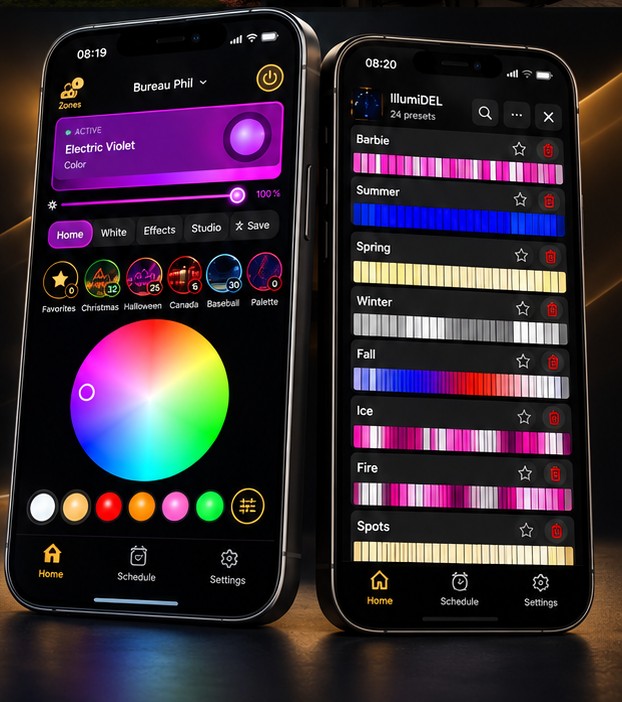
IllumiDEL app: home screen with color wheel and list of presets
In your smart home

With what you already have .

IllumiDEL integrators have their roots in home automation; the app is designed to complement that system, not to replace it. Control4 is available today through our driver; the others are on the roadmap, with no specific date set.

Control4Available
Google HomeComing Soon
Apple HomeComing Soon
Amazon AlexaComing Soon
SonosComing Soon
For System Integrators

You set it up. The customer benefits.

The controller configuration, zones, and number of LEDs are set up during installation; the customer receives a custom app with their name on it, with no visible technical settings.

Application Training

First-time setup, product-specific settings, troubleshooting (symptom → cause → solution), videos.

View the training course →

Delivery to the customer

The customer downloads the app, creates an account, and adds the system to their home Wi-Fi network. Choose a color and a schedule—and you're done.

Cheat Sheet →

Become an Integrator

Portal, training, sales simulator, and an app that doesn't compete with you: IllumiDEL doesn't install it.

The program →
User Guide

Everything you need to know, all on one page.

From installation to troubleshooting. Bookmark this page; it's updated whenever the app is updated.

01Installand Create an Account

  1. Search for IllumiDEL on the App Store or Google Play and install the app. It's free.
  2. Open it and tap “Sign up.” Enter your name, email address, and a password, then enter the six-digit code you received by email (“VERIFY”).
  3. Connect your phone to your home Wi-Fi network—the same one the controller is using.
  4. Tap the name at the top of the screen and create your project ("+ Add Project"), then, under "Devices," tap "+ Add Controller" and follow the on-screen instructions. The app will ask you to connect to the controller's Wi-Fi network, IllumiDEL-AP-XXXX (the last four characters are specific to your device), password illumidel1234.
    • New controller, not yet connected to your Wi-Fi: Connect to this network, return to the app, then select your home Wi-Fi network and enter its password. The controller will restart on your network.
    • Controller already on your Wi-Fi network (for example, after a migration): Select "Already on network devices" instead; it will be detected immediately.
    Give it a clear name ("House," "Facade") and confirm.
Can't find the controller? Make sure the phone is not connected to the guest network or using cellular data, and that the base station is turned on (indicator light on the base station). If you're using a mesh router, move closer to the main access point. The network IllumiDEL-AP-XXXX Appears only if the controller is not already connected to a Wi-Fi network.

02TheHome Screen

Everything you need for everyday life is right here, from top to bottom:

  1. Areas (top left): Select the areas you control.
  2. System name: Tap the arrow to switch to another system, if you have more than one.
  3. Power button (top right): Turns on or off whatever is selected.
  4. Active Card: What's currently in play—color or effect.
  5. Intensity: the slider, from 0 to 100%.
  6. Tabs: Color, White, Effects, Studio; and Save to save a setting.
  7. Collections: Your presets organized by theme, with the number of presets in each.
  8. Color wheel and quick colors below.
  9. Bottom bar: Home, Schedule, Settings.

03TheZones

A zone is a group of lights that can be controlled as a single unit: the front of the house, the garage, or the area under the cabinets. Your integrator set them up during installation; you don't have to do any wiring.

  • To select: Tap "Zones," check the ones you want to control, then return to the home screen. Everything you do next will apply to those zones.
  • Rename: Press and hold your finger on an area. Names the whole family can understand.
  • One area at a time: check just one box, and you'll lower the garage without affecting the rest.
Key takeaway: A zone is a place; a collection is a thing.

04Colors, Whites, and Effects

  • Color: Tap any shade on the color wheel, or a quick-select color below it. The house changes along with the screen.
  • White: from warm white (evening, wood, stone) to cool white (safety, work). Warm white, around 2,700 K, is the setting most people keep on all year round.
  • Effects: trails, sparkles, waves, gradients. Adjust the speed and intensity; a slow effect always looks more sophisticated than a fast one.
  • Studio: Draw your design pixel by pixel—a flag, a gradient, or your team's colors.

05Favoritesand Presets

A preset saves the settings for your zones (color, intensity, effect) so you can recall them with a single tap.

  1. Adjust the zones to your liking.
  2. Tap " Save," then enter a name ("Dinner," "Christmas," "Canadiens").
  3. Find it in " Favorites" or in the collection on the same topic.

The collections (Christmas, Halloween, Canada, etc.) are folders containing presets; the library includes more than 1,600 of them to start with. The number refers to the number of presets in the folder.

06Schedule

A schedule turns a device on, off, or runs a preset at a specific time, every day or on certain days.

  1. Bottom bar → Schedules → New schedule.
  2. Select the action (turn on, turn off, a preset), the zones, the time, and the days.
  3. To track the season, choose "Sunset" or "Sunrise" instead of a specific time, with an offset if you'd like ("30 minutes after sunset").
The schedules are stored in the controller. Even if the phone is dead or the Internet is down, the display still lights up.

07Checkfrom the outside and at home

Today, the app uses the IllumiDEL cloud relay, whether you're in the living room or at the cabin: there's nothing to set up and nothing to pay. You'll need an account (the one created during setup), and the controller must have Internet access through your home router.

  • Allow one or two seconds between the touch and the home.
  • Local control, coming soon: An update will allow the app to communicate directly with the controller over your home Wi-Fi—without an internet connection and with no delay—and automatically switch to the cloud when you leave. You don't need to do anything; the update will be installed through the app.
  • To share access with family members: coming in a future update. In the meantime, the same account can be used on multiple phones.

08ChangeYour Router or Wi-Fi

A new router, a new password, or a new provider: the controller must learn the new network. This is the only task that is performed on the controller's webpage rather than in the app.

  1. On your phone, near the router, open the Wi-Fi settings and connect to the network IllumiDEL-AP-XXXX (appears when the controller can no longer find its network), password illumidel1234.
  2. The Wi-Fi setup page opens. Tap "Scan," select your new 2.4 GHz network, enter the password, and save.
  3. The controller will restart on the new network. Reconnect your phone to this Wi-Fi network; the app will reconnect to the system.
2.4 GHz only. If your router combines 2.4 and 5 GHz under a single name, it will work; if it lets you choose, select 2.4.

09Troubleshooting

What you seeProbable causeWhat to Do
The app can't find the controllerPhone on a different network, cellular data, guest networkSame Wi-Fi network as at home, Wi-Fi enabled, move closer to the router
The system appears "offline" or does not respond after the migrationController without Internet access, router restarted, or cloud connection not reestablished after the updateElectrical reset: Unplug the unit for 30 seconds, plug it back in, wait two minutes; check the indicator light; see section 08 if the Wi-Fi has changed
It rings at home, not outsideAccount not created, or controller not yet migratedLog in to your account; migrate from the old app (Migrate section)
A schedule did not runController time or time zone, or schedule for an unchecked zoneSettings → Time; reopen the schedule and check the zones
Some lights remain blueThey are powered but are not receiving any dataA cable or a setup issue during installation: call your integrator
The colors don't matchLow intensity or white mixed with the colorIncrease the intensity; switch to Color instead of White

10GetHelp

Your integrator is familiar with your system; they are your first point of contact for anything related to the wiring or the controller. For the app itself: support@illumidel.com · (514) 900-4018, Monday through Friday, 9 a.m. to 5 p.m. Please tell us your phone model, the app version (Settings → About), and what you see on the screen.

Frequently Asked Questions

What is expected of us .

The beta, migration, troubleshooting, and day-to-day use. Can't find your question here? support@illumidel.com

The beta

What is the IllumiDEL 2.0 beta?

This is the first public release of the new IllumiDEL app and the new controller firmware. The app is fully functional and ready for everyday use; “beta” means we’re continuing to refine it based on your feedback, and updates will be released regularly.

Is the app really free?

Yes. No in-app purchases, no subscription for remote control, no “premium version.” The cloud relay is included with the controller—period.

What's coming up?

Local control over your home Wi-Fi, the AI assistant, and sharing access with family members are the next features planned. We'll notify you in the app when they become available.

How can you report a problem or share an idea?

Write to support@illumidel.com along with a screenshot and the name of your controller (it starts with illumidel-). During the beta, the team reads every comment.

Migration

I already have the IllumiDEL V1 app. What's new?

One account, remote control, Studio, Experience, Music, and a library of over 1,600 presets. You’ll need to update the controller once using the old app—it takes about 15 minutes, without an integrator. Your V1 presets won’t be preserved, but your LED configuration will be.

What's happening with the V1 app?

As long as your controller hasn't been migrated, V1 will continue to work. Once the migration is complete, the controller will no longer respond to it: the new app will take over permanently. See Migrating from the V1 app.

Do I have to migrate right away?

No. Your controller will continue to work with the old app until you install the update. Upgrade whenever it's convenient for you.

Do I need my system integrator?

No. You perform the migration yourself, from your phone, near the controller. Your integrator can still help you if you prefer.

Will it work with the controller I installed last year?

Yes. All IllumiDEL controllers are compatible. If yours works with the V1 app, migrate from the old app—it will install the new firmware.

I have several controllers. What should I do?

Migrate them one at a time: update them in the old app, perform a hard reset, then add them to the new app. Once the first one is online, move on to the next one.

Migration Troubleshooting

The first thing to try: a power reset. Unplug the controller from the outlet for 30 seconds, plug it back in, and then wait two minutes. This fixes most connection problems.
I don't see "Update Available" in the old app.
  • Make sure your phone is connected to your home Wi-Fi and that the old app can see your controller.
  • Tap the refresh arrow in the upper-right corner, or close the app and reopen it.
  • Tap the gear icon in the upper-right corner (a red dot indicates an update is available): The "Update Available" card is located under "Edit Device."

Still nothing? Please email us with the name of your controller.

The update appears to be stuck or has been interrupted.

Give it at least five minutes without unplugging anything. If nothing happens, or if the power went out, perform a power reset, wait two minutes, and then try adding it in the new app: if the controller appears under “Devices on Network,” the update was successful. If it doesn’t appear anywhere, please contact us.

I'm not receiving the code via email.

Check your spam or promotions folder. If you don't see it there, wait a minute and tap "Resend Code." Also, make sure the email address is spelled correctly.

The app tells me, "Please create a project first."

The new app organizes your controllers into a project (your home, your vacation home, your business). Tap the name at the top of the home screen, then tap “+ Add Project,” enter a name and address, and tap “Create.” You can then add the controller.

My controller does not appear under "Devices on Network."
  • Your phone must be connected to your home Wi-Fi, not to cellular data, a guest network, or a VPN.
  • On iPhone: Settings → IllumiDEL → enable Local Network. Without this permission, the app cannot find the controller.
  • Tap the refresh arrow in the upper-right corner.
  • Perform a power reset on the controller, wait two minutes, and try again.
The app is asking me to join the IllumiDEL-AP network.

For a migration, this isn't necessary: your controller is already connected to your Wi-Fi. Go back and tap "Already on network devices" instead of "CONTINUE."

The IllumiDEL-AP network no longer appears in my Wi-Fi settings.

That's normal. After the migration, when the controller is connected to the home Wi-Fi network, the network IllumiDEL-AP-XXXX disappears from the list.

The IllumiDEL-AP network has reappeared.

The controller has lost its connection to your home Wi-Fi: this could be due to a new router, a changed Wi-Fi password, a malfunction, or the controller being too far from the router. The network reappears just so you can reconnect it: follow the "Change Router or Wi-Fi" section of the guide.

What is the password for the IllumiDEL-AP network?

The new password is illumidel1234, all lowercase, without a space. The old password no longer works after the migration.

My controller is offline or won't come back online.

Right after you add it, this is normal for 8 to 10 seconds. Stay on the home screen: it will change to "Active" on its own.

If it remains offline, perform a power reset: unplug it for 30 seconds, plug it back in, and wait two minutes. Also check to see if your Internet connection is working and if the IllumiDEL-AP network has reappeared.

I want to go back to the old app.

That's not possible: a migrated controller only works with the new app. If something isn't working as expected, please contact us, and we'll work together to find a solution.

Nothing is working. What should I send you?

Email support@illumidel.com or call (514) 900-4018, Monday through Friday, from 9 a.m. to 5 p.m., with:

  • the name of the controller (it starts with illumidel-) ;
  • your phone model;
  • the step where it gets stuck;
  • a screenshot of the message displayed.

In everyday life

What if the Internet goes down?

For now, the app runs through the cloud: without an Internet connection, the controller waits until the connection is restored, but the schedules stored in the controller continue to run. Local control, which will be available soon, will allow you to control your home over Wi-Fi even without an Internet connection.

Who can see my data?

Your account, your sections, and your settings are used to operate your system—and for nothing else. See our privacy policy for details.

The IllumiDEL App

Your home in your pocket.

Free, no subscription required, compatible with all IllumiDEL controllers.

Don't have an IllumiDEL system yet? Find an integrator near you.